PC gaming can be frustrating when games lag, stutter, or run at low FPS. Whether you play competitive shooters, racing games, or open-world adventures, improving your PC’s performance can make your gaming experience smoother.
The good news is that you do not always need an expensive graphics card or a new computer to improve your FPS. A few simple changes to your settings, drivers, and system can make a noticeable difference.
In this guide, you will learn practical ways to reduce lag and improve FPS in PC games.
1. Lower Your Graphics Settings
One of the easiest ways to improve FPS is to adjust your in-game graphics settings. High-quality graphics require more processing power, especially from your GPU.
Try lowering these settings first:
- Shadows: Set them to Low or Medium.
- Anti-aliasing: Reduce the quality or disable it if necessary.
- Textures: Use Medium settings if your graphics card has limited VRAM.
- Effects: Lower particle effects, reflections, and volumetric lighting.
- Resolution: Try 1920 × 1080 or a lower resolution if your PC struggles.
Start by changing one or two settings at a time. This helps you identify which options have the biggest impact on performance.
2. Update Your Graphics Card Drivers
Outdated graphics drivers can cause performance issues, visual glitches, and game crashes. Updated drivers may also include optimizations for recently released games.
To update your drivers:
- Identify your graphics card in Windows Device Manager.
- Visit the official NVIDIA, AMD, or Intel website.
- Download the appropriate driver for your graphics card.
- Install it and restart your computer if needed.
Always download drivers from official sources. Avoid unfamiliar driver-updater programs that may install unwanted software.
3. Close Unnecessary Background Applications
Applications running in the background can consume RAM, CPU resources, and disk activity while you play.
Before launching a demanding game, consider closing unnecessary programs such as:
- Multiple browser tabs
- Video editing software
- Unused game launchers
- Background downloads
- Applications that use significant CPU or memory resources
You can use Task Manager by pressing Ctrl + Shift + Esc to check which applications are consuming system resources.
Do not end unfamiliar Windows processes or essential security software.
4. Enable Game Mode in Windows
Windows includes a Game Mode feature designed to help prioritize gaming and reduce interruptions from certain background activities.
To enable it:
- Open Windows Settings.
- Select Gaming.
- Open Game Mode.
- Turn Game Mode on.
You can also review your startup applications and disable unnecessary programs that automatically launch when Windows starts.
The performance improvement varies depending on your hardware and background workload.
5. Check Your PC’s Temperature
Overheating can cause thermal throttling, which reduces CPU or GPU performance to control temperatures. This may result in sudden FPS drops and stuttering.
Here are a few ways to prevent overheating:
- Clean dust from your PC’s fans and air vents.
- Make sure your computer has adequate airflow.
- Check that your CPU and GPU fans are working correctly.
- Avoid blocking laptop cooling vents.
- Monitor temperatures using a reputable hardware-monitoring utility.
If temperatures remain unusually high, inspect your cooling system and consider professional servicing rather than immediately replacing hardware.
6. Install Games on an SSD
A solid-state drive (SSD) can significantly improve game loading times compared with a traditional hard disk drive (HDD).
An SSD may also help reduce asset-loading stutters in some games, especially open-world titles. However, it does not automatically increase average FPS when the CPU or GPU is the main performance limitation.
If your PC still uses an HDD, consider installing frequently played games on an SSD when possible.
Keep enough free storage space available for Windows updates, game updates, and temporary files.
7. Adjust Your Display and FPS Settings
Your display settings can affect how smooth a game feels.
Try these adjustments:
- Set your monitor to its highest supported refresh rate.
- Enable FreeSync or G-SYNC if supported by your monitor and graphics card.
- Use an FPS cap that your PC can maintain consistently.
- Test V-Sync if screen tearing is distracting.
- Reduce resolution or enable supported upscaling technologies when needed.
For example, a 144 Hz monitor can display up to 144 frames per second, but your PC must render those frames to take full advantage of that refresh rate.
A stable frame rate often feels better than a highly variable FPS number.
8. Optimize Your Internet Connection
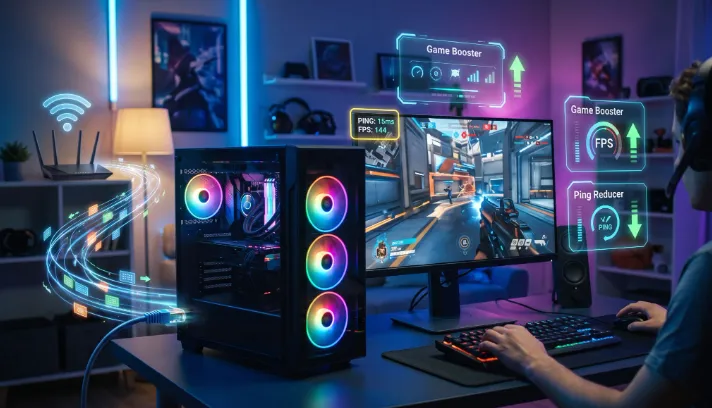
Online gaming lag is not always caused by low FPS. High ping, packet loss, and unstable internet connections can make multiplayer games feel delayed even when the graphics run smoothly.
To reduce network lag:
- Use an Ethernet cable instead of Wi-Fi when practical.
- Pause large downloads while gaming.
- Reduce unnecessary network activity on your connection.
- Choose a game server geographically closer to you.
- Restart your router if your connection is experiencing persistent problems.
Remember that FPS measures rendering performance, while ping measures network response time. Improving one does not necessarily improve the other.
9. Check Your RAM and CPU Usage
Insufficient RAM or a heavily loaded CPU can cause stuttering, especially in modern games with large maps and complex environments.
Open Task Manager while playing and check the CPU, Memory, and Disk usage.
If memory usage is consistently near capacity, closing background applications may help. If your PC has insufficient RAM for your games, adding compatible memory may improve smoothness.
Avoid buying new components before identifying the actual performance bottleneck.
10. Use DLSS, FSR, or XeSS When Supported
Some games support technologies that render the game at a lower internal resolution and upscale the image.
These include:
- NVIDIA DLSS: Available on supported NVIDIA graphics cards and games.
- AMD FSR: Supported by a range of graphics cards and games.
- Intel XeSS: Available in supported games and hardware configurations.
These technologies can improve FPS when GPU rendering performance is the main limitation. Image quality and compatibility depend on the selected mode, hardware, and game.
11. Keep Windows and Games Updated
Game developers regularly release patches that fix bugs and improve performance. Windows updates can also include system and hardware compatibility improvements.
Keep your operating system, games, and essential drivers updated. If a new driver causes problems, consult the manufacturer’s guidance for safely reverting to a stable version.
Avoid unofficial FPS boosters that promise unrealistic performance gains. Many simply close applications or change settings you can manage yourself.
12. Identify What Is Causing Your FPS Drops
The best solution depends on your PC and the type of performance problem you experience.
Use this quick guide:
| Problem | Possible cause | What to try |
|---|---|---|
| Consistently low FPS | GPU or CPU limitation | Lower graphics settings |
| Sudden FPS drops | Heat or background processes | Check temperatures and Task Manager |
| Long loading times | Slow storage | Consider an SSD |
| Multiplayer delay | High ping or packet loss | Check your network |
| Stuttering when moving through a game | Memory or asset-loading issues | Check RAM and storage usage |
| Screen tearing | Display synchronization | Test V-Sync or adaptive sync |
Conclusion
Reducing lag and improving FPS in PC games does not always require expensive upgrades. Lowering demanding graphics settings, updating graphics drivers, closing unnecessary applications, managing temperatures, and checking your network can all help improve performance.
Start with the simplest changes and test your game after each adjustment. If performance remains poor, check your CPU, GPU, RAM, and temperatures to determine whether a hardware upgrade is actually necessary.
With the right settings and a little troubleshooting, you can enjoy a smoother and more consistent PC gaming experience.
Frequently Asked Questions
How can I increase FPS without upgrading my PC?
Lower graphics settings, close unnecessary background applications, update graphics drivers, enable Windows Game Mode, and check for overheating.
Does more RAM increase FPS?
More RAM can improve performance when your current memory capacity is insufficient. However, adding RAM will not necessarily increase FPS if your graphics card or processor is the main limitation.
Does an SSD improve FPS?
An SSD primarily improves loading times and can reduce some asset-loading stutters. It usually does not significantly increase average FPS on its own.
Why does my FPS suddenly drop during gameplay?
Sudden FPS drops can result from overheating, background applications, memory pressure, driver issues, or demanding scenes. Monitoring hardware usage and temperatures can help identify the cause.
What is a good FPS for PC gaming?
Around 60 FPS is a common target for smooth gameplay. Competitive players may prefer 120 FPS, 144 FPS, or higher, depending on their monitor, game, and hardware.