Getting smooth performance in PC games does not always require buying a new graphics card, processor, or computer. In many cases, you can improve your FPS (frames per second) by adjusting game settings, updating drivers, managing background applications, and optimizing Windows.
Whether you play competitive shooters, racing games, or open-world adventures, a few simple changes can help your existing PC deliver a better gaming experience.
What Is FPS and Why Does It Matter?
FPS stands for frames per second. It measures how many individual frames your computer displays every second while running a game.
Higher FPS generally makes gameplay feel smoother and more responsive. For example, 30 FPS may be acceptable for some games, while 60 FPS or higher can provide a smoother experience. Competitive players may benefit from even higher frame rates when their hardware and monitor support them.
Your actual FPS depends on several factors, including your processor, graphics card, RAM, game settings, temperature, and background processes.
1. Lower Your Graphics Settings
One of the easiest ways to increase FPS is to reduce demanding graphics settings. Many games offer options that improve visual quality but require more processing power.
Start by adjusting these settings:
- Shadows: Set shadow quality to Low or Medium.
- Anti-aliasing: Reduce the quality or choose a less demanding option.
- Ambient occlusion: Disable it or lower its quality.
- Reflections: Reduce reflection quality, especially in demanding games.
- Volumetric effects: Lower fog, lighting, and similar effects.
- View distance: Reduce it if your game is CPU-intensive.
You do not need to set every option to the lowest level. Experiment with individual settings to find a balance between image quality and performance.
2. Reduce Your Game’s Resolution
Resolution has a major impact on graphics performance. Running a game at a lower resolution means your graphics card has fewer pixels to render.
For example, if your PC struggles at 1920 × 1080, try reducing the resolution to 1600 × 900 or 1280 × 720.
You can also look for built-in upscaling technologies such as NVIDIA DLSS, AMD FSR, or Intel XeSS, depending on your graphics card and game. These technologies can improve performance while maintaining reasonable image quality.
Keep in mind that lower resolutions may make images look less sharp.
3. Close Unnecessary Background Applications
Applications running in the background can consume RAM, CPU resources, and sometimes GPU resources. This can reduce the performance available to your game.
Before launching a demanding game, close applications you do not need, such as:
- Unnecessary browser tabs.
- Video editing software.
- Background downloads.
- Unused game launchers.
- Applications performing large file transfers.
You can use Windows Task Manager to identify resource-heavy applications.
Press Ctrl + Shift + Esc to open Task Manager. Check the CPU, Memory, and GPU columns to see which applications are using significant resources.
Avoid ending unfamiliar Windows processes or essential security software.
4. Update Your Graphics Card Drivers
Graphics drivers help Windows and games communicate with your graphics card. Driver updates can improve compatibility, fix bugs, and sometimes increase performance in particular games.
To update your graphics drivers:
- Identify your graphics card in Device Manager or Task Manager.
- Visit the official NVIDIA, AMD, or Intel website.
- Download the appropriate driver for your graphics card and Windows version.
- Follow the installation instructions.
- Restart your computer if required.
Download drivers from official sources rather than unknown websites. If your games are already running well, a driver update may not produce a noticeable FPS improvement, but it can help resolve certain performance issues.
5. Enable Windows Game Mode
Windows includes a Game Mode feature designed to help prioritize gaming activity and reduce some background interruptions.
To check it:
- Open Windows Settings.
- Select Gaming.
- Open Game Mode.
- Turn Game Mode on.
The exact benefit varies depending on your hardware, Windows version, and the games you play. Test your performance before and after enabling it to determine whether it helps your system.
6. Disable Unnecessary Startup Programs
Some applications launch automatically when Windows starts. Over time, these programs can consume memory and run background processes that you do not need while gaming.
To manage startup applications:
- Open Task Manager using Ctrl + Shift + Esc.
- Select Startup apps.
- Review the applications listed.
- Disable programs you do not need to start automatically.
Do not disable essential drivers, security tools, or software required for your computer to work correctly.
Reducing unnecessary startup applications can make Windows feel more responsive and free up resources for demanding games.
7. Check Your PC’s Temperature
Overheating can cause a CPU or GPU to reduce its speed to protect itself. This process, known as thermal throttling, can lead to lower FPS and inconsistent performance.
Signs of possible overheating include:
- FPS dropping after several minutes of gaming.
- Fans becoming unusually loud.
- Stuttering during demanding scenes.
- Performance improving after the computer cools down.
Keep your PC’s air vents clear, remove dust carefully, and make sure the cooling fans are working properly. For desktop computers, check that cables or other objects are not blocking airflow.
Use a reputable monitoring tool to check CPU and GPU temperatures. Compare the readings with the manufacturer’s recommended operating limits for your specific hardware.
8. Use the Correct Power Settings
Power-saving settings can limit performance on some systems, particularly laptops running on battery power.
On Windows, open Settings and navigate to System, then Power & battery or Power, depending on your version. Select an appropriate performance mode when gaming.
If you use a laptop, connect the charger when playing demanding games and make sure the manufacturer’s performance profile is configured correctly.
Higher-performance modes can increase power consumption, heat, and fan noise. Choose a setting that suits your cooling system and gaming needs.
9. Check Whether Your PC Has Enough RAM
Insufficient RAM can cause stuttering, slow loading, and inconsistent FPS, particularly when several applications are open.
Open Task Manager and check memory usage while your game is running. If memory usage remains very high and Windows is frequently using the storage drive as virtual memory, closing unnecessary applications may help.
Also check that your memory is configured correctly. Some systems support dual-channel memory, which can improve performance compared with a single memory module.
Avoid using random registry tweaks or memory-cleaning applications that promise to dramatically increase FPS. They cannot replace sufficient physical memory.
10. Optimize Your Game’s Display Settings
Display settings can influence how smoothly a game runs and feels.
Try these adjustments:
- Enable your monitor’s supported refresh rate in Windows display settings.
- Use exclusive fullscreen mode if it performs better in your game.
- Enable a supported upscaling option when available.
- Adjust V-Sync according to your preferences and whether you experience screen tearing.
- Reduce the render scale if the game offers that option.
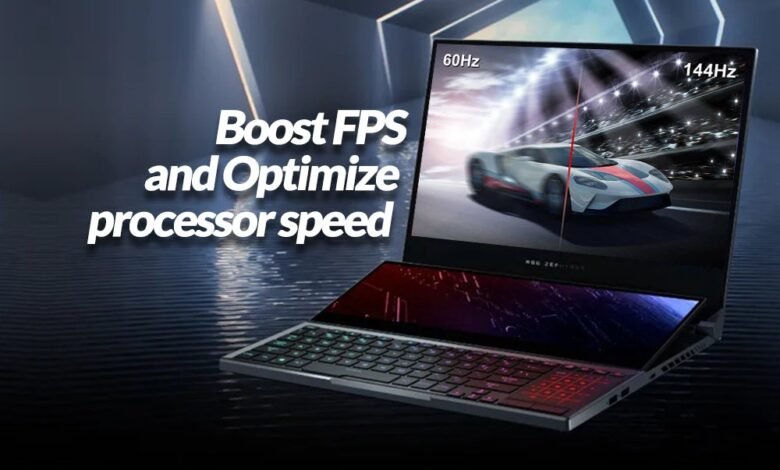
A monitor with a 144 Hz refresh rate does not automatically guarantee 144 FPS. Your PC must render enough frames to take full advantage of that refresh rate.
11. Install Games on an SSD When Possible
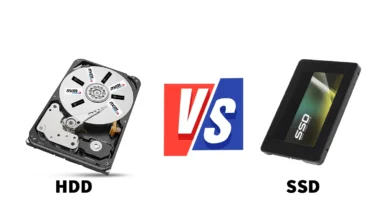
An SSD can reduce loading times and improve responsiveness in games that stream large amounts of data. It may also help reduce certain stutters caused by slow storage.
However, moving a game from an HDD to an SSD does not necessarily inc