Game stuttering on Windows can make even your favorite games frustrating to play. You may notice sudden frame drops, short freezes, delayed responses, or uneven gameplay, even when your computer has a powerful graphics card. These problems can occur in both older and newer games.
Fortunately, you can often reduce game stuttering by adjusting Windows settings, updating drivers, managing background applications, and optimizing your game configuration. In this guide, you will learn practical ways to improve gaming performance on a Windows PC.
What Causes Game Stuttering on Windows?
Before trying different solutions, it helps to understand why games stutter. Several factors can affect performance, including:
- Outdated or corrupted graphics drivers
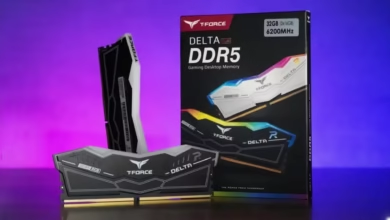
- Insufficient RAM or video memory
- High CPU or GPU usage
- Too many background applications
- Games installed on a slow or nearly full storage drive
- Overheating components
- Incorrect graphics settings
- Shader compilation and game optimization issues
- Windows updates or background processes
Identifying the cause can help you choose the right solution instead of changing unnecessary settings.
1. Update Your Graphics Drivers
Graphics drivers allow Windows and games to communicate properly with your graphics card. Outdated or damaged drivers can cause performance problems, including stuttering and unexpected frame drops.
To update your graphics driver:
- Identify your graphics card using Task Manager or Device Manager.
- Visit the official website of NVIDIA, AMD, or Intel.
- Download the appropriate driver for your graphics card and Windows version.
- Install the driver and restart your computer.
You can also check Windows Update for available driver updates.
If stuttering begins immediately after a driver update, consider installing a previous stable version. Avoid downloading drivers from unfamiliar websites.
2. Close Unnecessary Background Applications
Applications running in the background can consume valuable CPU power, RAM, and storage resources. This can affect games, especially on computers with limited memory.
Before launching a game, close applications you do not need, such as unnecessary browser tabs, video editors, and large downloads.
You can check resource usage through Task Manager:
- Press Ctrl + Shift + Esc.
- Open the Processes section.
- Check CPU, Memory, Disk, and GPU usage.
- Close unnecessary applications that consume significant resources.
Do not end unfamiliar Windows processes or security software simply to free up resources.
3. Lower Your Graphics Settings
Running a game at settings that exceed your hardware’s capabilities can lead to inconsistent frame rates.
Open the game’s graphics menu and try lowering these settings:
- Shadow quality
- Ambient occlusion
- Reflections
- Volumetric effects
- Ray tracing
- View distance
- Texture quality, if video memory is limited
You can also reduce the resolution or enable a supported upscaling feature, such as NVIDIA DLSS, AMD FSR, or Intel XeSS.
Start with demanding settings and change one or two options at a time. This makes it easier to identify which settings have the greatest effect on performance.
4. Enable Windows Game Mode
Windows Game Mode is designed to help prioritize gaming activity and reduce interference from certain background tasks.
To check whether it is enabled:
- Open Windows Settings.
- Select Gaming.
- Choose Game Mode.
- Turn Game Mode on.
The exact benefit depends on your computer and the game you are playing. It may improve consistency on some systems, while others may show little difference.
5. Check CPU and GPU Temperatures
Overheating can cause a processor or graphics card to reduce its speed to control temperature. This process, known as thermal throttling, can result in sudden frame drops and stuttering.
Possible warning signs include fans becoming unusually loud, performance getting worse after several minutes, and frame rates dropping as the computer heats up.
To address overheating:
- Keep air vents clear of dust.
- Make sure your PC has adequate airflow.
- Check that cooling fans are working properly.
- Avoid blocking laptop ventilation openings.
- Monitor temperatures using a reputable hardware-monitoring utility.
If temperatures remain unusually high, inspect the cooling system or seek professional assistance. Do not change voltage or overclocking settings unless you understand the risks.
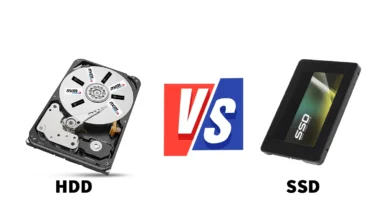
6. Install Games on an SSD
Storage speed can affect loading times and, in some games, the smoothness of gameplay. Games that frequently load textures and other assets may experience interruptions when installed on a slow hard disk drive.
If your PC has an SSD, consider installing frequently played games on it.
For the best results:
- Check how much free space remains on your storage drive.
- Remove unnecessary files or applications.
- Move the game to an SSD if sufficient space is available.
- Restart the game and compare its performance.
An SSD does not guarantee higher average FPS, but it can reduce loading times and help with certain asset-streaming stutters.
7. Adjust Your Power Settings
Power-saving settings can limit performance in some situations, particularly on laptops.
On Windows 11, open Settings, select System, then Power & battery. Choose an appropriate power mode, such as Best performance, when gaming and when your device’s power and temperature limits allow it.
On Windows 10, check the Power Options section in Control Panel.
Laptop users should also connect their charger when gaming if the manufacturer recommends it. Keep in mind that higher-performance settings can increase power consumption, fan noise, and heat.
8. Disable Unnecessary Overlays and Recording Features
Game overlays can sometimes conflict with games or increase resource usage. Examples include overlays from game launchers, graphics software, chat applications, and third-party monitoring tools.
Try disabling unnecessary overlays one at a time. If you use Windows Game Bar recording, turn off background recording temporarily to see whether it makes a difference.
Restart the game after changing these settings and compare the results.
You do not need to disable every overlay permanently. Keep the features you use if they do not affect performance.
9. Update Windows and Verify Game Files
Windows updates can include security improvements, compatibility fixes, and driver updates. Game developers also release patches that address bugs and performance problems.
To check for Windows updates:
- Open Settings.
- Select Windows Update.
- Check for available updates.
- Install appropriate updates and restart your PC.
If only one game is stuttering, verify its installation files through the relevant game launcher. Steam, for example, provides an option to verify the integrity of game files in a game’s Properties menu.
Corrupted files, outdated game versions, or incomplete updates can cause unexpected performance issues.
10. Check RAM Usage and Disable Unstable Overclocks
Modern games may require substantial system memory, especially when other applications are running. If RAM usage becomes too high, Windows may rely more heavily on storage, which can contribute to stuttering.
Check memory usage in Task Manager while playing. Close unnecessary applications, and consider a RAM upgrade if your system consistently runs out of available memory.
Also, if you have recently overclocked your CPU, GPU, or RAM, return to stable default settings to test whether the overclock is responsible. Unstable memory profiles can cause inconsistent performance even when a game appears to run normally most of the time.
How to Identify the Real Cause of Stuttering
Different symptoms can point toward different problems. Use the following table as a starting point.
| Symptom | Possible cause | What to try |
|---|---|---|
| Stuttering with high CPU usage | CPU bottleneck or background tasks | Close unnecessary apps and reduce CPU-heavy settings |
| Stuttering with high GPU usage | Graphics settings too demanding | Lower resolution or demanding effects |
| Freezes when entering new areas | Shader compilation or asset loading | Update the game and allow shaders to finish compiling |
| Performance drops after several minutes | Possible overheating | Check temperatures and cooling |
| Stuttering when memory is nearly full | Insufficient available RAM or VRAM | Close apps and reduce memory-heavy settings |
| One game stutters while others run well | Game-specific bug or configuration issue | Verify game files and check for patches |
These symptoms are clues rather than definitive diagnoses. Several problems can occur at the same time.
Frequently Asked Questions
Why does my game stutter even with high FPS?
Average FPS does not show every interruption in frame delivery. A game can report high FPS while individual frames take unusually long to render. Check frame-time consistency, background activity, temperatures, and shader compilation.
Can Windows updates cause game stuttering?
Yes, a driver or system update can occasionally introduce compatibility problems. If the issue starts immediately after an update, check for newer fixes or consider reverting the affected driver to a stable version.
Does more RAM reduce game stuttering?
It can help when your current system is running out of memory. However, adding RAM will not solve stuttering caused by overheating, graphics settings, driver problems, or game-specific bugs.
Should I use an FPS limiter?
An FPS limiter can help make frame delivery more consistent by preventing your system from constantly pushing against its performance limits. Try a limit your PC can sustain reliably and compare the results. The ideal setting depends on your display refresh rate, hardware, and the game.
Why does only one game stutter on my PC?
The game may have a specific optimization issue, corrupted files, incompatible settings, or shader compilation delays. Update the game, verify its files, and check whether the problem occurs in particular areas or after specific actions.
Final Thoughts
Game stuttering on Windows can have several causes, but you do not always need to upgrade your hardware to improve performance. Start by updating graphics drivers, closing unnecessary applications, checking temperatures, and adjusting demanding graphics settings.
If the problem continues, examine RAM usage, storage performance, overlays, and game-specific files. Make one change at a time and test the same game or location after each adjustment. This approach makes it easier to identify the actual cause and achieve smoother gameplay without unnecessary upgrades.